Check for Updates
This guide explains how to Check for Updates in the Loft App to ensure you are using the latest version with all the latest features and improvements.
Watch The Video Tutorial
Steps to Check for Updates
-
Open the Loft App
-
Go to Settings Section
- Tap the side menu (hamburger icon) at the top-left corner.
- Click on Settings option.
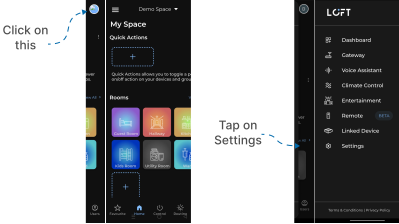
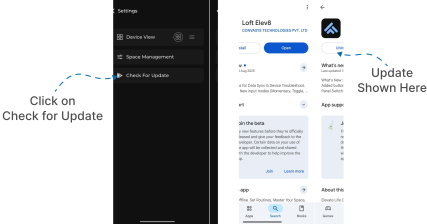
- Tap on Check for Updates
- The app will redirect you to the Play Store (for Android) or App Store (for iOS).
- If an update is available, the Update button will appear.
- Tap Update to install the latest version of the app.
Tip: Regularly checking for updates ensures you get the best performance, new features, and important security fixes.